Enable end-to-end encryption
Enable E2EE in a few clicks so your files are encrypted before leaving your browser.
Context
Enable FileVert end-to-end encryption in 4 simple steps. Your files are encrypted in your browser before sending with AES-256-GCM. The decryption key is transmitted via URL fragment (#), never sent to servers. Combined with automatic deletion (2-15 days), it's the most secure solution for transferring sensitive files.
Enable E2EE in 2 steps
Follow this guide to enable end-to-end encryption.
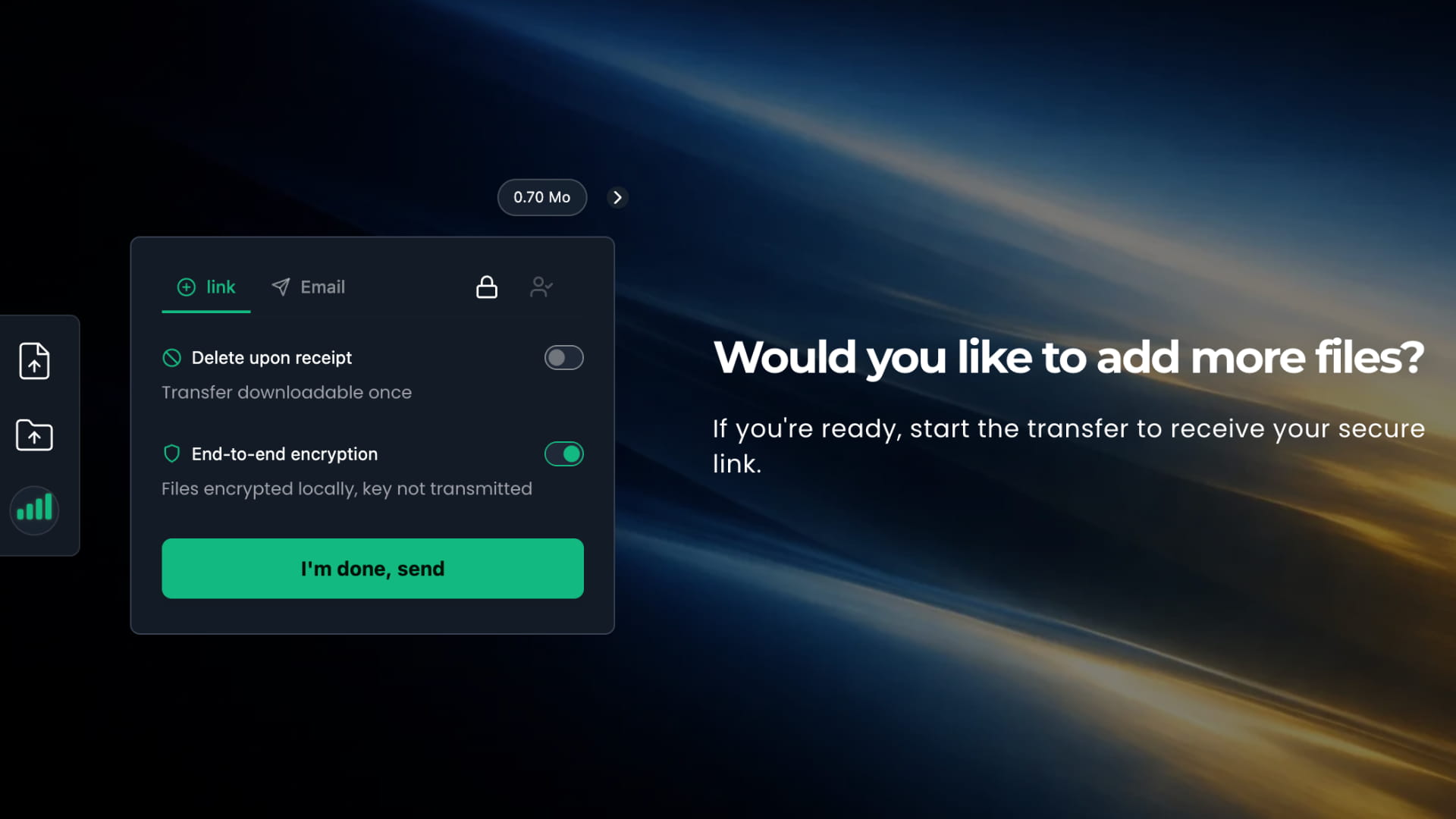
Enable E2EE
Check End-to-end encryption. A purple indicator confirms activation.
- Paid plans
- One-click activation
- Purple indicator
Important
Key points
Keep the link
Without the complete link, files are unrecoverable. Keep it safe.
No online preview
E2EE files cannot be previewed online because our servers don't have access to the content.
Visible metadata
File names and sizes remain visible to display the file list. Only the content is encrypted.
FAQ